


How to create a floating icon on the right side of a website
How to add a social media floating icon to the right side of your WordPress website? Adding a floating icon to the right side of your website allows visitors to quickly contact you or follow you on social media. Here are the specific steps:
Step 1: Using the elementor widget HTML
Drag the Elementor widget HTML into our footer editing page. The reason for choosing the footer editing page is that if we want to display this social media icon on the page, we need to put this code in the header or footer.
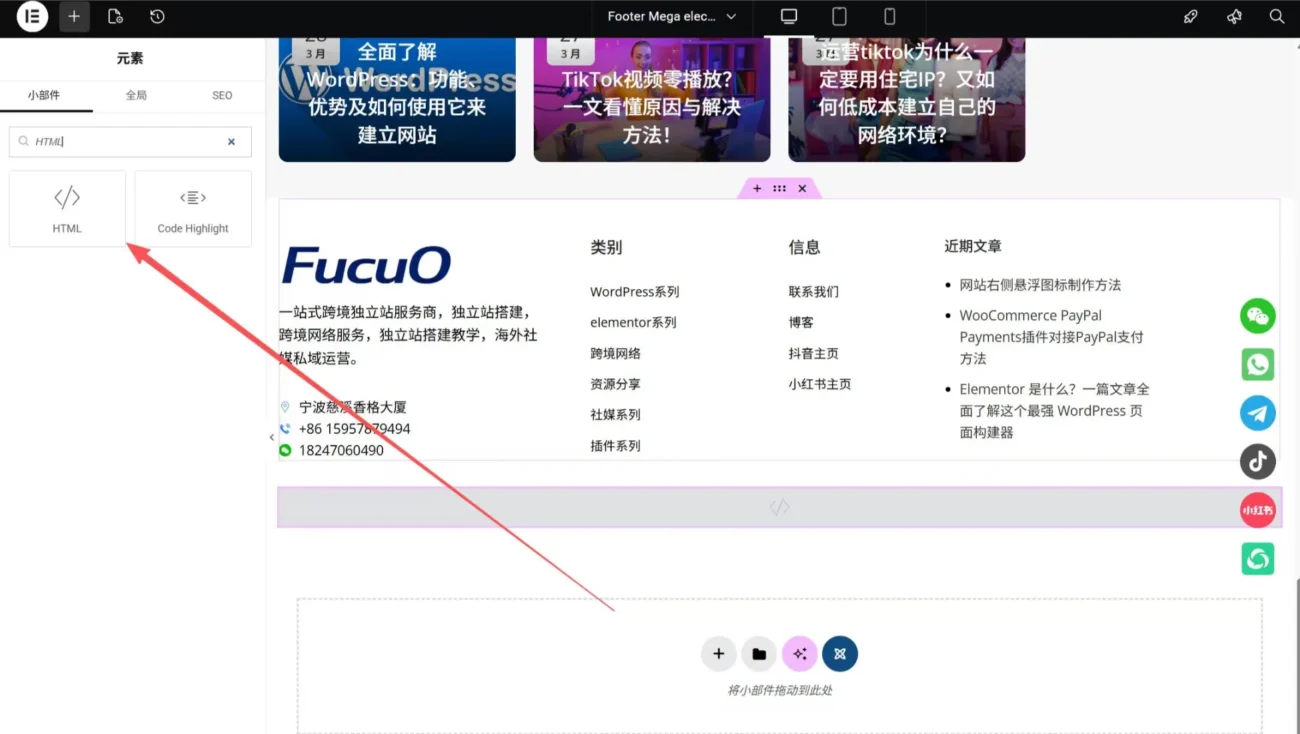
Code example: Simply replace the links on your social media icons and QR codes as needed.
					<div class="social-float">


  <div class="social-item">
    <img data-lazyloaded="1" src="data:image/gif;base64,R0lGODdhAQABAPAAAMPDwwAAACwAAAAAAQABAAACAkQBADs=" decoding="async" data-src="TikTok icon URL" alt="抖音图标URL" title="How to create a floating icon on the right side of a website (Part 2)">
    <div class="qr-box">
      <img data-lazyloaded="1" src="data:image/gif;base64,R0lGODdhAQABAPAAAMPDwwAAACwAAAAAAQABAAACAkQBADs=" decoding="async" data-src="TikTok QR code URL" alt="抖音二维码URL" title="How to create a floating icon on the right side of a website (3)">
      <span>Douyin</span>
    </div>
  </div>


  <div class="social-item">
    <img data-lazyloaded="1" src="data:image/gif;base64,R0lGODdhAQABAPAAAMPDwwAAACwAAAAAAQABAAACAkQBADs=" decoding="async" data-src="Xiaohongshu icon URL" alt="小红书图标URL" title="How to create a floating icon on the right side of a website (4)">
    <div class="qr-box">
      <img data-lazyloaded="1" src="data:image/gif;base64,R0lGODdhAQABAPAAAMPDwwAAACwAAAAAAQABAAACAkQBADs=" decoding="async" data-src="Xiaohongshu QR code URL" alt="小红书二维码URL" title="How to create a floating icon on the right side of a website (5 steps)">
      <span>RED</span>
    </div>
  </div>
Step 2: Adjusting CSS Styles
HTML is just for writing and uploading our content; we still need to use CSS to adjust our styles and positions.
Code example:
/* ===== Floating Position ===== */ .social-float { position: fixed; right: 20px; top: 50%; transform: translateY(-50%); z-index: 99999; } /* ===== Icon ===== */ .social-item { position: relative; margin: 14px 0; } .social-item img { width: 40px; height: 40px; object-fit: contain; cursor: pointer; transition: 0.25s; opacity: 0.85; } .social-item:hover img { transform: scale(1.1); opacity: 1; } /* ===== QR Code Box (Key Optimization🔥) ===== */ .qr-box { position: absolute; right: 65px; top: 50%; transform: translateY(-50%) translateX(10px); width: 200px; /* Zoom in */ height: 200px; border-radius: 16px; /* Change to a darker color (more like your initial one) */ background: #0f172a; /* Reduce padding */ padding: 6px; box-shadow: 0 12px 30px rgba(0,0,0,0.15); opacity: 0; visibility: hidden; transition: all 0.25s ease; } /* Small triangle */ .qr-box::after { content: ""; position: absolute; right: -6px; top: 50%; transform: translateY(-50%); border: 6px solid transparent; border-left-color: #0f172a; } /* ===== QR code image (Key optimization 🔥) ===== */ .qr-box img { width: 100%; height: 100%; object-fit: contain; background: #fff; /* Only keep the white border for QR code security */ padding: 4px; /* Very small white border */ border-radius: 10px; } /* ===== Text ===== */ .qr-box span { display: block; font-size: 12px; color: #fff; margin-top: 6px; } /* ===== Hover display ===== */ .social-item:hover .qr-box { opacity: 1; visibility: visible; transform: translateY(-50%) translateX(0); } /* ===== Hide on mobile ===== */ @media (max-width: 768px) { .social-float { display: none; } }
After copying this CSS code, go to the Elementor editing page, click the HTML widget on the right, then click Settings on the left, scroll to the bottom and find CSS, then copy the code into it.
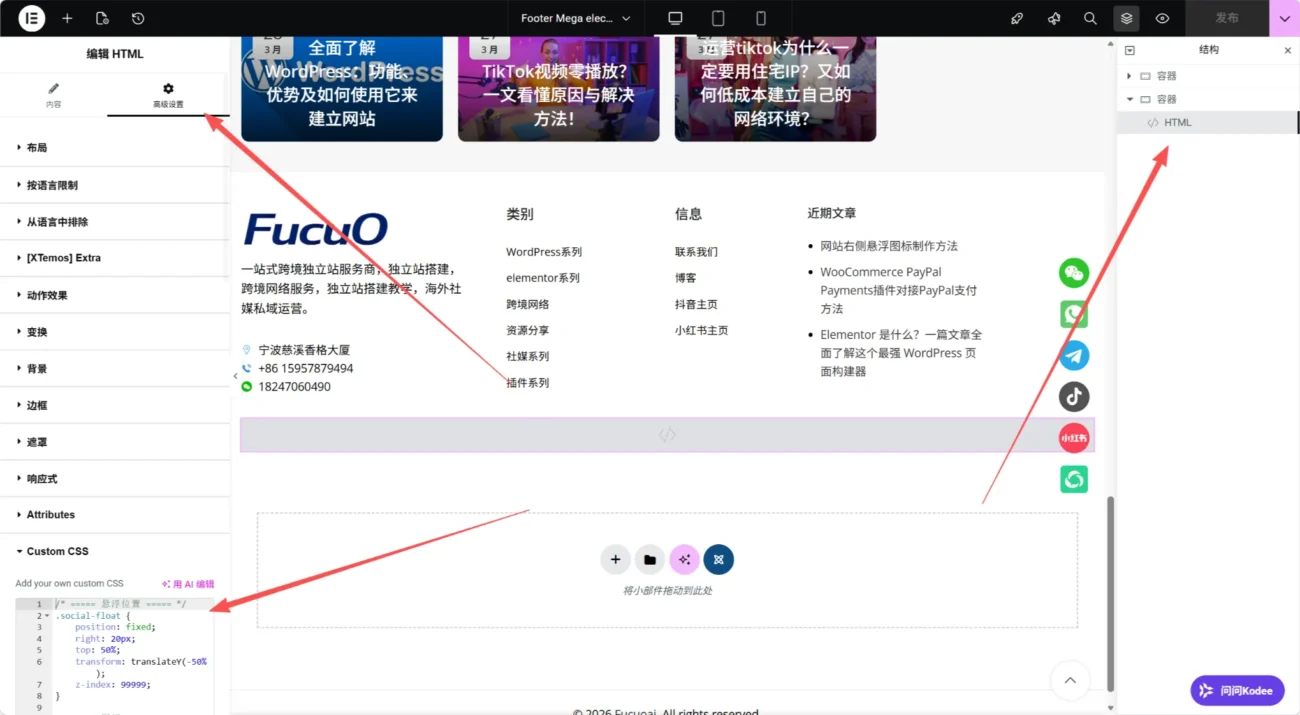
Final effect

Recommended cross-border dedicated lines
Safe and stable, fast response, smooth live streaming

Recent Posts
- WordPress Admin Panel Optimization: A Complete Guide to Improving Website Performance and User Experience
- Recommended mainstream paid themes overseas
- Based on real-world testing, here are 5 recommended static residential IP service providers suitable for TikTok operations.
- How to create a floating icon on the right side of a website
- How to integrate the WooCommerce PayPal Payments plugin with PayPal payments